

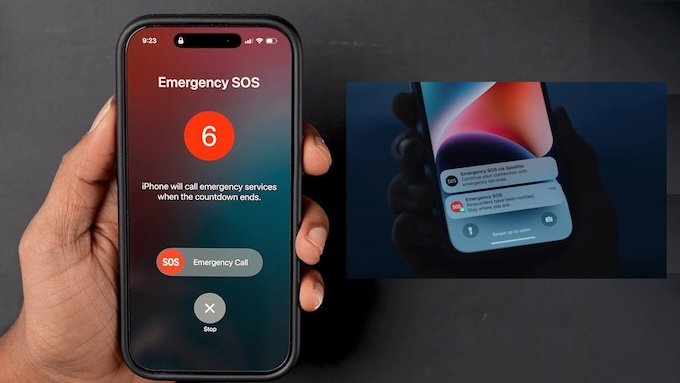
When your iPhone shows “SOS” or “SOS Only” in the status bar, it means your device can’t connect to your regular cellular network. However, it can still place emergency calls using available networks from other carriers.
To remove your iPhone from SOS mode, try the following troubleshooting steps:
Immediate Exit Methods:
- Press the Side Button again (or the Power button on older models) to stop the SOS countdown.
- Release both Side and Volume buttons if you triggered SOS accidentally by holding them.
- Tap “Stop” on the screen during the countdown if you triggered it accidentally.
After SOS Has Been Activated:
If emergency services were contacted:
- Stay on the line and inform the dispatcher it was accidental
- Answer any callbacks from emergency services to confirm you’re safe
Prevent Future Accidental Triggers:
On iPhone 14 & Later:
- Go to Settings → Emergency SOS
- Toggle off “Call with Hold” (this prevents holding side + volume buttons from triggering SOS)
- Keep “Call with 5 Presses” enabled for intentional emergencies
On iPhone 13 & Earlier:
- Go to Settings → Emergency SOS
- Disable “Auto Call” (you’ll still have the SOS slider option)
Important Notes:
- In many regions, you cannot disable SOS entirely for safety reasons
- You can still access the Emergency SOS slider even with “Call with Hold” disabled
- Consider enabling “Countdown Sound” so you hear the alert before emergency services are called
If you frequently trigger SOS accidentally, adjusting these settings should help while keeping emergency features accessible when truly needed.
Leave a Reply